鼠标跟随粒子效果
AI 摘要鱼粮不足,AI 今天先歇着 · 正文在下面
教程
基本效果
先创建一个html页面
html
<!DOCTYPE html>
<html lang="en">
<head>
    <meta charset="UTF-8">
    <title>Title</title>
    <!-- 粒子吸附鼠标 -->
    <script type="text/javascript" src="particle-mouse.js" charset="utf-8" defer></script>
</head>
<body>
<canvas id="particle-mouse"></canvas>
</body>
<style>
*{
    margin: 0;
    padding: 0;
}
body{
    background: #333;
}
</style>
</html>
编写particle-mouse.js
js
var canvas = document.getElementById("particle-mouse");
var ctx = canvas.getContext("2d");
//画布跟随屏幕大小
canvas.width = window.innerWidth;
canvas.height = window.innerHeight;
var points = [];
let live = 50;
//监听鼠标移动
window.addEventListener("mousemove", function (evt) {
    for (let i = 0; i < 5; i++) {
        //将当前鼠标的位置存入
        points.push({
            x: evt.x, //x坐标
            y: evt.y, //y坐标
            vx: 0.5 - Math.random(), //水平速度分量,
            vy: 0.5 - Math.random(), //垂直速度分量
            life: live, //粒子的声明周期
            color: "white",
            size: Math.random() * 5
        })
    }
})

/**
 * 绘制粒子
 */
function drawpoints() {
    // 清除整个画布
    ctx.clearRect(0, 0, canvas.width, canvas.height)
    for (let i = 0; i < points.length; i++) {
        //取出鼠标经过位置时的粒子
        let point = points[i]
        ctx.beginPath()
        // 画圆
        ctx.arc(point.x, point.y, point.size, 0, Math.PI * 2, false)
        ctx.fillStyle = point.color
        ctx.fill()
        // 减少粒子的生命周期,小于0则移除粒子
        point.life--
        if (point.life <= 0) {
            points.splice(i, 1)
        }
        point.x += point.vx * 5 //使例子往水平方向移动
        point.y += point.vy * 5 //使例子往垂直方向移动
    }
}
/**
 * 每10ms画一次粒子
 */
setInterval(drawpoints, 10)效果
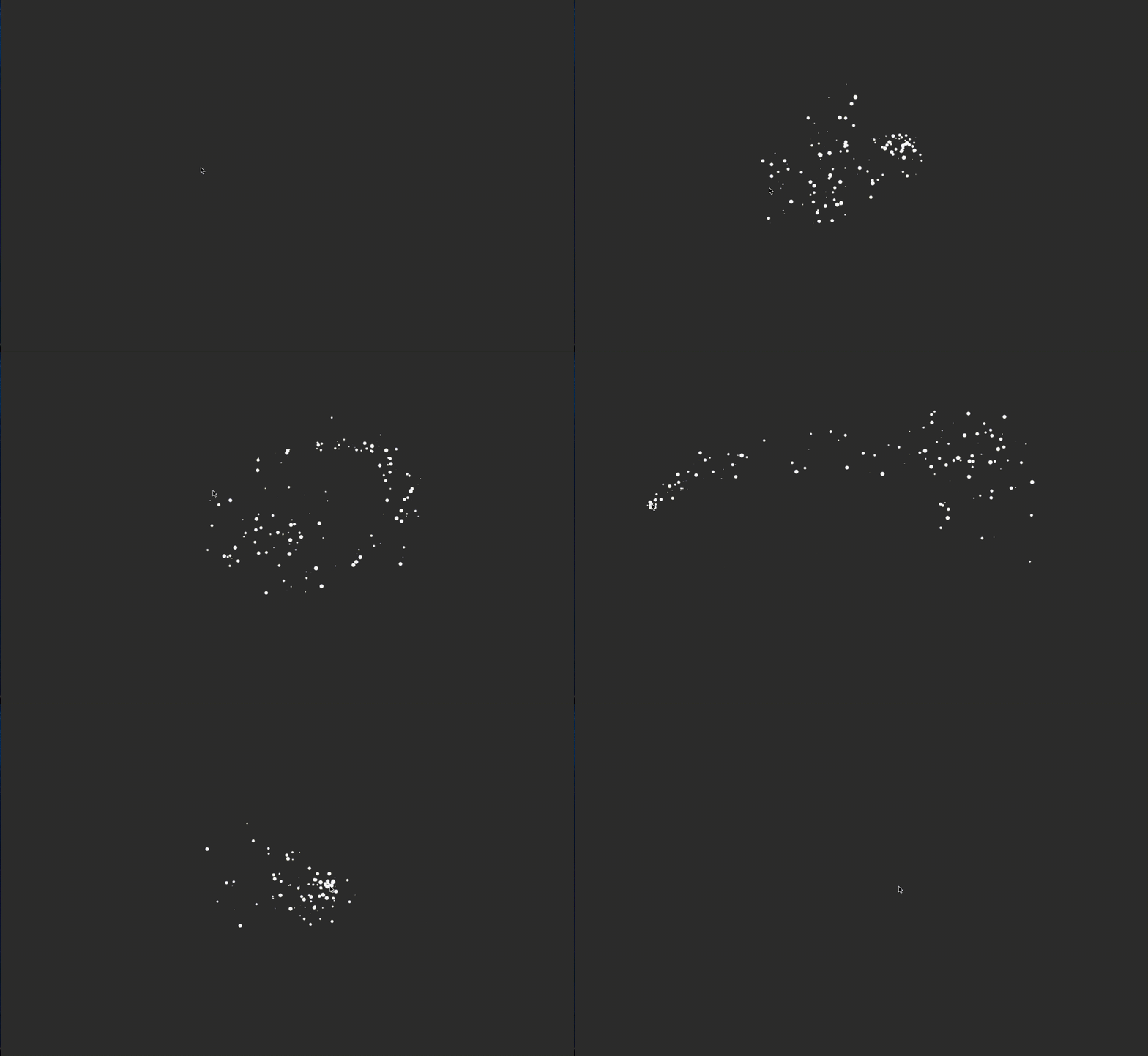
消失过渡
但这样看起来有点生硬,可以让颜色有个逐渐消失的过程,主要修改以下js部分
js
window.addEventListener("mousemove", function (evt) {
    for (let i = 0; i < 5; i++) {
        //将当前鼠标的位置存入
        points.push({
            x: evt.x, //x坐标
            y: evt.y, //y坐标
            vx: 0.5 - Math.random(), //水平速度分量,
            vy: 0.5 - Math.random(), //垂直速度分量
            life: live, //粒子的声明周期
            color: "255,255,255", //修改成rgb颜色
            size: Math.random() * 5
        })
    }
})

/**
 * 绘制粒子
 */
function drawpoints() {
    // 清除整个画布
    ctx.clearRect(0, 0, canvas.width, canvas.height)
    for (let i = 0; i < points.length; i++) {
        // 取出鼠标经过位置时的粒子
        let point = points[i]
        ctx.beginPath()
        // 画圆
        ctx.arc(point.x, point.y, point.size, 0, Math.PI * 2, false)
	// 使颜色有个渐变的过程rgb(x,x,x,透明度)
        ctx.fillStyle = "rgba(" + point.color + "," + point.life / live + ")"
        ctx.fill()
        // 减少粒子的生命周期,小于0则移除粒子
        point.life--
        if (point.life <= 0) {
            points.splice(i, 1)
        }
        point.x += point.vx * 5 //使例子往水平方向移动
        point.y += point.vy * 5 //使例子往垂直方向移动
    }
}效果
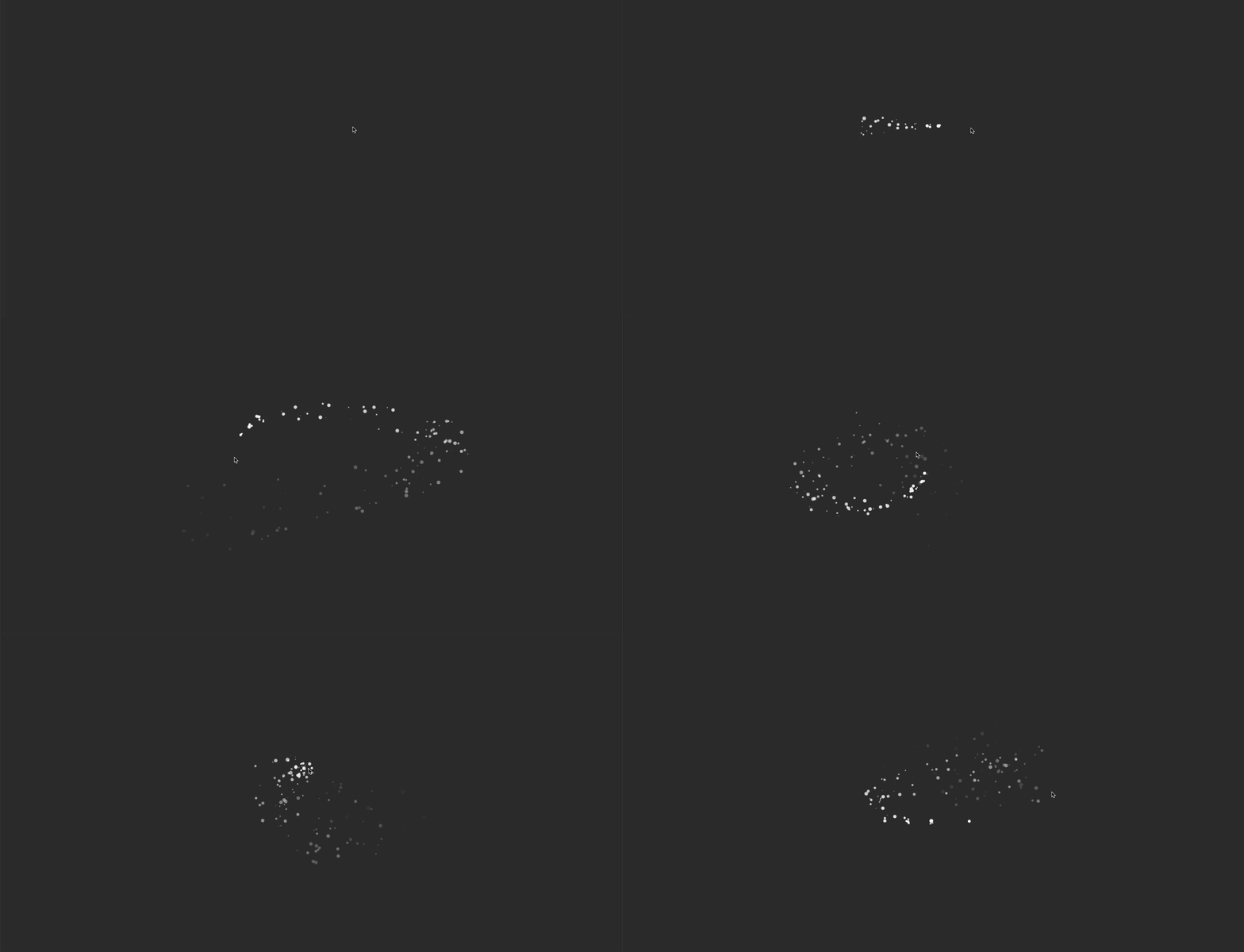
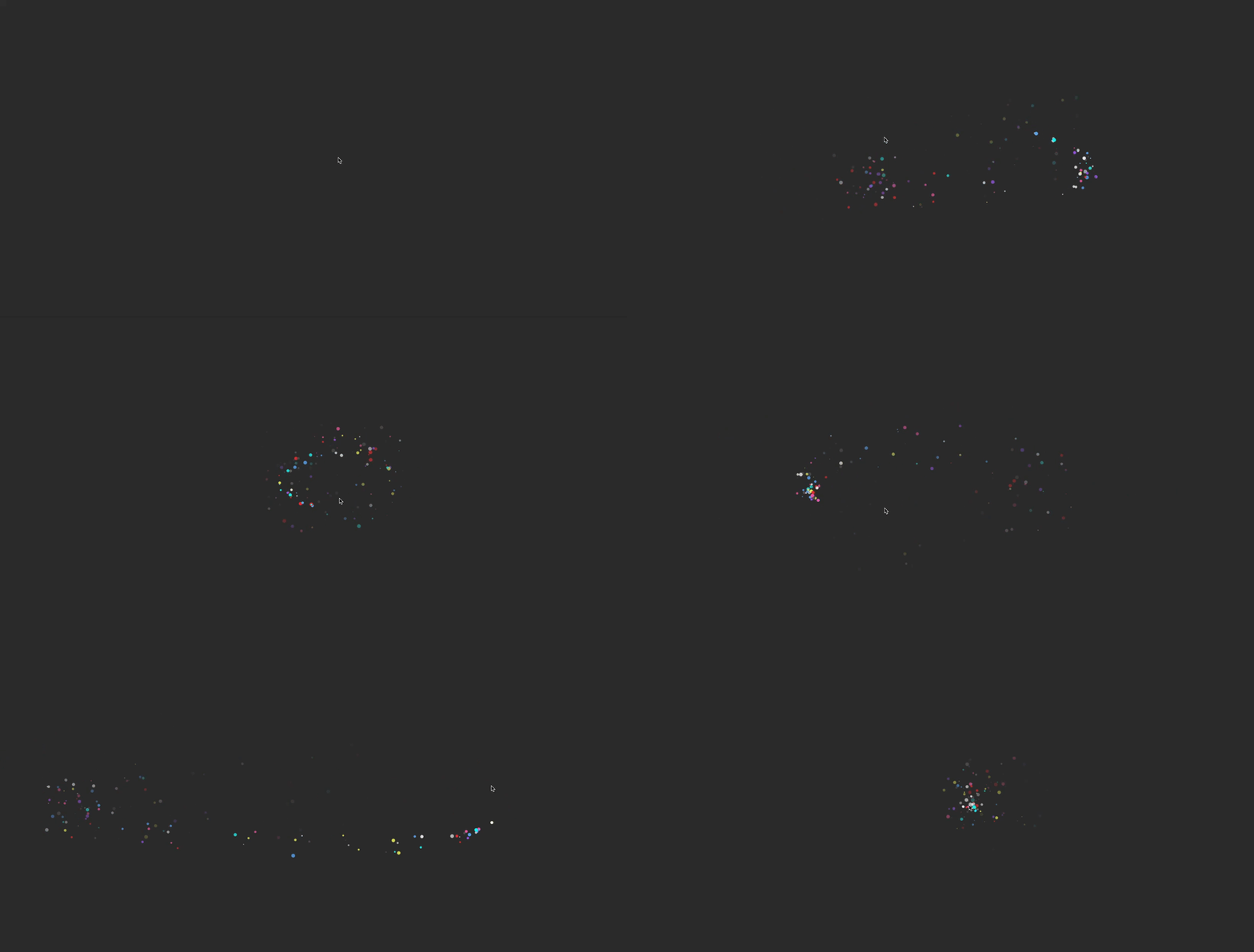
彩色效果
js
//颜色数组
let colors = [
    "178,102,255", //紫色
    "102,178,255", //淡蓝色
    "255,51,51", // 淡红色
    "255,255,102", //淡黄色
    "255,102,178", //粉色
    "204,204,205", //淡紫色
    "0,255,255", //天蓝色
    "96,96,96", //灰色
    "255,255,255" //白色
]
//监听鼠标移动
window.addEventListener("mousemove", function (evt) {
    for (let i = 0; i < 5; i++) {
        //将当前鼠标的位置存入
        points.push({
            x: evt.x, //x坐标
            y: evt.y, //y坐标
            vx: 0.5 - Math.random(), //水平速度分量,
            vy: 0.5 - Math.random(), //垂直速度分量
            life: live, //粒子的声明周期
            color: colors[parseInt(Math.random() * colors.length)], //随机获取数组的颜色
            size: Math.random() * 5
        })
    }
})
静态页面使用
上面的方法是需要在页面引入canvas的,我们要想做到引入js即可直接显示效果,需要调整改下代码,如下:
js
!function () {

    //封装方法,压缩之后减少文件大小
    function get_by_tagname(name) {
        return document.getElementsByTagName(name);
    }

    var canvas = document.createElement("canvas");
    let ctx = canvas.getContext("2d");
    //画布跟随屏幕大小
    canvas.width = window.innerWidth;
    canvas.height = window.innerHeight;
    canvas.id = "particle-mouse";
    canvas.setAttribute('style', 'position: fixed;left: 0;top: 0;pointer-events: none;');
    get_by_tagname("body")[0].appendChild(canvas);

    let points = [];
    let live = 50;
    //颜色数组
    let colors = [
        "178,102,255", //紫色
        "102,178,255", //淡蓝色
        "255,51,51", // 淡红色
        "255,255,102", //淡黄色
        "255,102,178", //粉色
        "204,204,205", //淡紫色
        "0,255,255", //天蓝色
        "96,96,96", //灰色
        "255,255,255" //白色
    ];

    /**
     * 绘制粒子
     */
    function drawpoints() {
        // 清除整个画布
        ctx.clearRect(0, 0, canvas.width, canvas.height)
        for (let i = 0; i < points.length; i++) {
            //取出鼠标经过位置时的粒子
            let point = points[i]
            ctx.beginPath()
            // 画圆
            ctx.arc(point.x, point.y, point.size, 0, Math.PI * 2, false)
            ctx.fillStyle = "rgba(" + point.color + "," + point.life / live + ")"
            ctx.fill()
            // 减少粒子的生命周期,小于0则移除粒子
            point.life--
            if (point.life <= 0) {
                points.splice(i, 1)
            }
            point.x += point.vx * 5 //使例子往水平方向移动
            point.y += point.vy * 5 //使例子往垂直方向移动
        }
    }

    /**
     * 每10ms画一次粒子
     */
    setInterval(drawpoints, 10);

    /**
     * 重新调整尺寸
     */
    window.addEventListener("resize", function () {
        let canvasPoint = document.getElementById('particle-mouse');
        canvasPoint.width = window.innerWidth;
        canvasPoint.height = window.innerHeight;
    });

    //监听鼠标移动
    window.addEventListener("mousemove", function (evt) {
        for (let i = 0; i < 5; i++) {
            //将当前鼠标的位置存入
            points.push({
                x: evt.x, //x坐标
                y: evt.y, //y坐标
                vx: 0.5 - Math.random(), //水平速度分量,
                vy: 0.5 - Math.random(), //垂直速度分量
                life: live, //粒子的声明周期
                color: colors[parseInt(Math.random() * colors.length)],
                size: Math.random() * 5
            })
        }
    });
}();vue 中使用
这里我把代码进一步做了点调整
js
//封装方法,压缩之后减少文件大小
function get_by_tagname(name) {
    return document.getElementsByTagName(name);
}

let points = [];
let live = 30;
//颜色数组
let colors = [
    "178,102,255", //紫色
    "102,178,255", //淡蓝色
    "255,51,51", // 淡红色
    "255,255,102", //淡黄色
    "255,102,178", //粉色
    "204,204,205", //淡紫色
    "0,255,255", //天蓝色
    "96,96,96", //灰色
    "255,255,255" //白色
];

let canvas;
let ctx;
// let stop;
/**
 * 创建画布
 */
function createCanvas() {
    canvas = document.createElement("canvas");
    ctx = canvas.getContext("2d");
    //画布跟随屏幕大小
    canvas.width = window.innerWidth;
    canvas.height = window.innerHeight;
    canvas.id = "particle-mouse";
// canvas.style.cssText = "position:fixed;top:0;left:0;";
    canvas.setAttribute('style', 'position: fixed;left: 0;top: 0;pointer-events: none;');
    get_by_tagname("body")[0].appendChild(canvas);
    // // 定义清除画布
    // stop = requestAnimationFrame(function reverse() {
    //     ctx.clearRect(0, 0, canvas.width, canvas.height);
    //     stop = requestAnimationFrame(reverse);
    // })
}


/**
 * 绘制粒子
 */
function drawPoints() {
    // 清除整个画布
    ctx.clearRect(0, 0, canvas.width, canvas.height)
    for (let i = 0; i < points.length; i++) {
        //取出鼠标经过位置时的粒子
        let point = points[i]
        ctx.beginPath()
        // 画圆
        ctx.arc(point.x, point.y, point.size, 0, Math.PI * 2, false)
        ctx.fillStyle = "rgba(" + point.color + "," + point.life / live + ")"
        ctx.fill()
        // 减少粒子的生命周期,小于0则移除粒子
        point.life--
        if (point.life <= 0) {
            points.splice(i, 1)
        }
        point.x += point.vx * 5 //使例子往水平方向移动
        point.y += point.vy * 5 //使例子往垂直方向移动
    }
}


/**
 * 定义画布大小随窗口调整
 */
function resizeHandler () {
    let canvasPoint = document.getElementById('particle-mouse');
    if (canvasPoint) {
        canvasPoint.width = window.innerWidth;
        canvasPoint.height = window.innerHeight;
    }
}

/**
 * 定义鼠标移动事件的回调函数
 * @param evt
 */
function mouseMoveHandler(evt) {
    for (let i = 0; i < 5; i++) {
        //将当前鼠标的位置存入
        points.push({
            x: evt.x, //x坐标
            y: evt.y, //y坐标
            vx: 0.5 - Math.random(), //水平速度分量,
            vy: 0.5 - Math.random(), //垂直速度分量
            life: live, //粒子的声明周期
            color: colors[parseInt(Math.random() * colors.length)],
            size: Math.random() * 5
        })
    }
}

/**
 * 启动鼠标监听,绘制特效
 */
export function startMouse() {
    createCanvas();
    // 每10ms画一次粒子
    setInterval(drawPoints, 10);
    //监听鼠标移动
    window.addEventListener("mousemove", mouseMoveHandler);
    // 监听画布大小,重新调整尺寸
    window.addEventListener("resize", resizeHandler);
}

/**
 * 移除鼠标移动事件监听器
 */
export function stopMouse() {
    // 移除监听事件
    window.removeEventListener("mousemove", mouseMoveHandler);
    // 移除监听事件
    window.removeEventListener("resize", resizeHandler);
    // 移除画布
    let child = document.getElementById("particle-mouse");
    if (child) {
        child.parentNode.removeChild(child);
        // window.cancelAnimationFrame(stop);
    }
    // 清除定时器
    clearInterval(drawPoints);
}在需要使用的地方引入即可
html
<script>
import {startMouse, stopMouse} from "@/assets/js/theme/particle-mouse"
export default {
  methods: {
    showMouse() {
        if (this.mouseFlag) {
          startMouse();
        } else {
          stopMouse();
        }
    },
  }
}
</script>评论
0 条—
还没有评论,来说第一句